Showing posts with label Iphone. Show all posts

Friday, November 16, 2012

Nexus 4 Camera Also Hindered By Purple Haze Issues In Certain Lighting Conditions


The standard of the smartphone snapper has increased dramatically over the past couple of years, to the stage where many rely upon their handset as their sole source of still images and videos. While companies have worked around many design caveats to offer optimal photo and video-taking experience, some issues have proved more difficult to smooth out than others, and just like the iPhone 5 and Galaxy S III before it, it seems the LG-made Google Nexus 4 also suffers with the issue of purple haze.


For those unfamiliar, purple haze is – in a technological sense – exactly as described. Certain reflections and refractions of a smartphone’s camera lens or heavy load of the sensor cause a hazy, purplish-colored blemish to appear across a vast portion of an image, which all-but ruins the shot. The Galaxy S III’s camera, which, under tests, appears inferior to most other recently released, high-end smartphones, seems to suffer with the issue a great deal worse than others, but despite being very new to the market, the Nexus 4 has not escaped the plaguing issue.
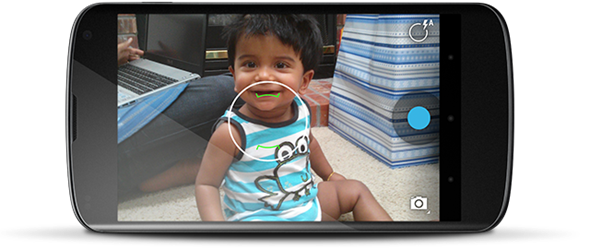


The image below has been taken on a Nexus 4, and you can clearly notice the discolored nature of the shot. It’s not just a Nexus 4 problem – it is in fact one affecting the majority of the cameras on some of the higher-end smartphones – and if you wish to prevent these cloudy blotches from spoiling your Kodak moments, ensure you don’t take shots right in the face of a bright light.



Hopefully, it’s an issue that the likes of Apple, Google, HTC and LG can fix in the near future. Whilst the overall quality of cameras on smartphones wasn’t of particular significance some five or so years ago, now it’s almost essential, and with millions of images taken using the likes of the iPhone 5 and the Galaxy S III and shared on social networking sites like Facebook, none of the major smartphone makers will want this issue to escalate beyond the current product lineup.

The issue itself doesn’t crop up too often, and as stated earlier, if you avoid the heavy lighting conditions, you should be able to keep your images relatively purple haze-free.

Read More...

Tuesday, June 12, 2012

Install Froyo on iPhone using Bootlace


It may not solve some of the problems involved with actually running Android on an iPhone, but the recently released Bootlace 2.1 application for jailbroken iPhones does at least make the installation process easier than ever. Unfortunately, it only works with the iPhone 2G and 3G at the moment, but it will let you install Android 2.2 (a.k.a. Froyo) directly on the device without the need for a computer. Hit up the source link below for the complete installation instructions -- and insert your own joke here about the iPhone running Froyo while your Android phone is still stuck at 2.1.
Bootlace lets you install Froyo on your iPhone without a computer originally appeared on Engadget on Wed, 10 Nov 2010 15:23:00 EDT. Please see our terms for use of feeds.
Permalink Phone Arena, Redmond Pie | sourceFSM.com | Email this | Comments"

Read More...

Tuesday, June 14, 2011

Apple starts selling unlocked iPhone 4 for $649


Not that it'll do you much good in the US -- an unlocked iPhone 4 will still only work on AT&T's 3G bands -- but Apple has just started selling its prized smartphone without any carrier partiality on its US online store. The big attraction is, of course, being able to take the phone abroad and switch MicroSIMs to your heart's content, an experience that most other nations are already well accustomed to. Additionally, though the $649 (16GB) and $749 (32GB) levies may seem rather steep for American buyers, they're quite a bit more affordable than the unlocked pricing elsewhere. You can have yours within three business days if black's your color, or three to five if you're after the snow white one.

Buy from Apple


Read More...

Saturday, June 11, 2011

iOS 5 Beta 1 Tethered Jailbreak Now Available


RedSn0w, the popular jailbreak tool by the Dev Team, has been updated with support for a tethered jailbreak on the iOS 5 developer beta. It’s been less than a week since Apple got iOS 5 Beta 1 into the hands of developers at WWDC and across the world, and a tethered jailbreak is already available.

The news was announced by Dev Team frontman, MuscleNerd, and version 0.9.8.b1 of RedSn0w is now available to download for those with access to the iOS 5 beta. To get the iOS 5 beta legally, you must have a registered developer account with Apple.(...)
Read the rest of iOS 5 Beta 1 Tethered Jailbreak Now Available

Read More...

Sunday, April 17, 2011

So Here is White iPhone 4

So, After almost 10 months of release Apple iPhone 4, Apple is going to release the White iPhone 4 on April 26, 2011. The new White iPhone 4 is going to available through both AT&T and Verizon. The launch was delayed due to manufacturing issues with White iPhone 4.

Though everyone is already waiting for iPhone 5, Apple is releasing the White iPhone 4. Rumours say that iPhone 5 is going to come with aluminium body like iPad. Lets wait and see.
Read More...

Saturday, December 25, 2010

iPhone 4 only $147 at Sam’s Club (Lowest Price Ever)

iPhone 4 only $147 at Sam’s Club (Lowest Price Ever): "
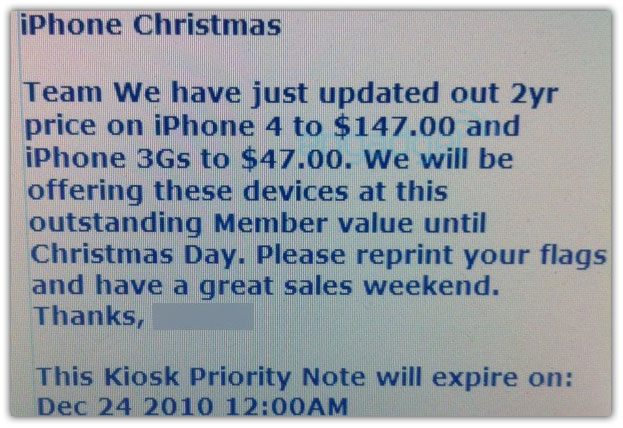
Sam’s Club is now offering the iPhone 4 (16 GB) for $147 with 2 year AT&T contract, states a purportedly leaked memo. This is the lowest price for an iPhone 4 16GB we have seen yet.


The discount also applies to iPhone 3GS bringing its price down to $47. According to unconfirmed memo, Sam’s Club will offer this discount from now until Christmas Day, so if you have to have the cheapest possible iPhone 4, this will probably be it. [via engadget]


Read More...

Sunday, November 28, 2010

iPhone 4 vs Android Phone

Lol @ this pic !! I'm not against iPhone, but this is what Wirefly.com shows. I tried searching for iPhone in this shopping site. It showed me this site. One way of selling Android based phones :)
Try searching for iPhone in WireFly.com. Or Click Here

Just want to share with you :)
Read More...

Friday, November 19, 2010

Splashtop Remote desktop enables you access Windows on iPhone, iPad, iTouch


Splashtop Remote desktop application for your apple devices like iPhone, iPad, iTouch enables you to access to your Windows Machine remotely.

Download the app for iPhone, iPad, iTouch from the Appstore.


Splashtop Remote works on

1. iPad
2. iPhone 4 and iPhone 3GS with iOS4.0 or later
3. iPod Touch - 3rd gen or later with iOS4.1 or later

Read More...

Tuesday, October 05, 2010

iOS 4.2 beta 2 Now Available for Download to Developers

Apple has released iOS 4.2 beta 2 for iPhone, iPad and iPod Touch to developers. Developers can download iOS 4.2 beta 2 8C5101c build from the iOS Dev Center. iOS 4.2 beta 2 new features after the jump…
ios 4.2 beta 2
  • Refined iPad multitasking animation
  • New YouTube video uploading options
  • New Game Center compatibility indicators on mobile iOS App Store
  • Bonus: iTunes 10.1 which supports printing
  • Performance improvements
iOS 4.2 final will be released to masses in November 2010 with full iPad compatibility.
WARNING: Avoid the iOS 4.2 beta 2 firmware if you depend on jailbreak and unlock until further notice.
ios 4.2 beta 2

Download iOS 4.2 Beta 2 8C5101c

iOS 4.2 beta 2 is available to developers only. Developers can download iOS 4.2 from the iOS Dev Center. However, if you still want to give it a shot, Google the queries listed below. (Please don’t ask for the links)

Download iOS 4.2 beta 2 for iPad

  • iPad1,1_4.2_8C5101c_Restore.ipsw
  • ios_4.2_beta_2__ipad__8C5101c.dmg

Download iOS 4.2 beta 2 for iPhone 4

  • iPhone3,1_4.2_8C5101c_Restore.ipsw
  • ios_4.2_beta_2__iphone_4__8C5101c.dmg

Download iOS 4.2 beta 2 for iPhone 3GS

  • iPhone2,1_4.2_8C5101c_Restore.ipsw
  • ios_4.2_beta_2__iphone_3gs__8C5101c.dmg

Download iOS 4.2 beta 2 for iPhone 3G

  • iPhone1,2_4.2_8C5101c_Restore.ipsw
  • ios_4.2_beta_2__iphone_3g__8C5101c.dmg

Download iOS 4.2 beta 2 for iPod Touch 4G

  • iPod4,1_4.2_8C5101c_Restore.ipsw
  • ios_4.2_beta_2__ipod_touch__4th_generation__8C5101c.dmg

Download iOS 4.2 beta 2 for iPod Touch 3G

  • iPod3,1_4.2_8C5101c_Restore.ipsw
  • ios_4.2_beta_2__ipod_touch__3rd_generation__8C5101c.dmg

Download iOS 4.2 beta 2 for iPod Touch 2G

  • iPod2,1_4.2_8C5101c_Restore.ipsw
  • ios_4.2_beta_2__ipod_touch__2nd_generation__8C5101c.dmg
Read More...

Friday, October 01, 2010

160by2 for iPhone


Do you want to send free SMS to India, Saudi, Kuwait, Singapore, Malaysia? Yep. You hit the right blog. 

As apple says, "You name it, We have an app for that."

Yes, Now you can send Free SMS for the above countries using the 160by2 app. 

Today morning, I was going through the AppStore in iPhone. Under the Social Networking, Free Apps, I found out the 160by2 app. Previously I used to use the m.160by2.com url for sending sms through the iPhone. Now I have installed this app and I'm using it.

Here are few screenshots


So go ahead, and download this Free App for your iPhone. 


* This applications requires the iPhone 3.1 Software Update.
Read More...

How To Insert SIM Card in iPhone 4/iPhone 3GS


To Insert/Install SIM Card in iPhone 4, follow the steps given below:

Step 1: Insert the end of the paper clip or SIM eject tool into the hole on the SIM tray. Press firmly and push it straight in until the tray pops out.

Step 2: Pull out the SIM tray and place the SIM card in the tray. The angled corner of the SIM ensures that the card fits only the correct way in the tray.

Step 3: With the tray aligned, carefully replace the SIM tray containing the SIM card in iPhone.

Once you have inserted the SIM card into the device iPhone will recognize it and allow you to use the device.
Read More...

Monday, April 26, 2010

Features of iPhone OS 4.0

Here are new features of iPhone OS 4.0


Here is just a small list of the new features you can expect to see in the iPhone OS 4.0:

* Multitasking: This is the feature that iPhone users have wanted the most, and with OS 4.0 they finally get it. The idea seems dead simple – double tap the Home button and this brings up a task switcher. Select the app you want and it pops into the foreground. Seems simple, but it’s taken Apple a long time to get this much-wanted feature to users.

As a bonus, some applications such as those playing audio (such as Pandora) will continue to play the audio while in the background much like the iPod part of the iPhone does now.

* App folders: Group apps into folders.

* Fast app switching: Background apps aren’t really running in the background in the traditional sense, only certain aspects of them. But, when you switch from an app, its state is saved so you can quickly and easily switch back to it.

* Notifications: A notification system that allows background apps to communicate with the user.

* Updated mail app: All sorts of updates here, from multiple Exchange accounts to threaded messages.

* iBooks: Yep, read books on your iPhone and iPad.

* iAd advertising: Expect apps to get a LOT more cluttered as Apple gives developers a plugin ad module.

* 5x digital zoom: Get more zoom from your camera …

* Game center: A centralized gaming service allowing users to connect with others wanting to play games.
Read More...

Tuesday, June 30, 2009

Unlock/Jailbreak iPhone 2g/3g Using redsn0w

In this Iphone Tutorial you will learn about how to Update + Unlock + Jailbreak your iPhone 2G using iTunes and redsn0w.

Note:
  1. This iPhone Tutorial is only for iphone 2G users who want to upgrade their firmware to 3.0.
  2. Also This iPhone Tutorial is for users who are using Windows XP Operating System on their machine.
So If you are a Windows User and have iPhone 2G in your hands and want to upgrade to OS 3.0.. please go ahead.... :)

Before starting the Tutorial please download the below items
  1. iTunes must be of version 8.2.Click here if you want to get the 8.2 iTunes.
  2. OS 3.0 for iPhone 2G : iPhone1,1_3.0_7A341_Restore.ipsw.
  3. Redsn0w : Mirror 1 | Mirror 2 (Torrent).
  4. BL 3.9
  5. BL 4.6
After downloading all the above items. Extract the redsn0w zip. Place the ipsw file and BL 3.9, 4.6 files into the same folder. Now your folder will look like this.

You are ready for the iphone Upgrade.

Step 1: Connect your iPhone 2G to your PC and launch iTunes.
Step 2 : From the left pane in iTunes, select your iPhone. Now hold down the SHIFT Key and Restore button to select the ipsw file. Navigate to the redsn0w folder created earlier and select the ipsw file (iPhone1,1_3.0_7A341_Restore.ipsw).


Now iTunes will start restoring your iPhone to OS 3.0. Please wait until the restore completes.


Here starts the Unlock and Jailbreak...

Step 3 : Now your iPhone is updated. Here are the steps to Unlock and Jailbreak your iPhone. Select the redsn0w.exe present in the redsn0w folder.

Step 4 : From redsn0w click the Browse Button and select the ipsw file (iPhone1,1_3.0_7A341_Restore.ipsw)


Step 5 : redsn0w will verify your firmware. When it's done click on the Next Button to continue.

Step 6 : Check the checkboxes Intall Cydia, Icy and Unlock and click on Next to continue.

Step 7 : Now you need to select the BL 3.9 and BL 4.6 files. Click on the browse buttons and select accordingly.


Step 8 : Now Connect your iPhone to PC and Turn Off iPhone if it is ON. Click on the Next button to continue.
Step 9 : Follow the instructions given by redsn0w. The below steps are for entering the iPhone into DFU Mode.


Step 10 : Once your iPhone gets into DFU Mode, redsn0w jailbreaks and unlocks the iPhone. Be Patient now. The iPhone reboots couple of times.
Step 11 : After the completion, redsn0w will notify you that you are done. Click the finish Button. Meanwhile iphone completes reboot and jailbreak, it will run BootNeuter.

That's it.

You are done with the Update, Unlock and Jailbreak of your iPhone 2G using Windows and Redsn0w.

I am using iPhone 2g Os 3.0 with Airtel in India. :)


Please leave your comments below. Do follow my blog for the other iphone updates.
Thanks :)
Read More...

Saturday, June 13, 2009

113 Features in OS 3.0


1. Cut/Paste
2. Copy/Paste
3. Shake to undo/redo typing
4. Text selection for easy mass deletion
5. MMS
6. Landscape keyboard in Notes
7. Landscape keyboard in Mail
8. Landscape keyboard in Messages
9. Forward texts or picture messages
10. Delete individual texts or picture messages
11. Sending progress bar in Messages app moved to title instead of over the keyboard area (allows typing new message while the first one is sending)
12. USB tethering
13. Bluetooth tethering
14. Stereo bluetooth (A2DP)
15. Spotlight search (searches all app titles, mail, media, contact details, and calendar appointments)
16. Search in Notes
17. Search in Mail
18. Search in iPod
19. In-App purchases
20. Option to have double clicking the home button go to the Spotlight Search
21. Option to have double clicking the home button go to the Camera
22. Preview icon in lower left hand corner for last shot taken in Camera app
23. Shake to shuffle in iPod
24. Scrolling of screenshots in App Store
25. Type of phone used under each call in Recents (i.e., mobile, home, work, etc.)
26. Call history log (including call duration)
27. Option to Share Contact in each contact listing
28. Hold link in Safari to Copy
29. Hold link in Safari to Open in New Page
30. Auto Fill contact information, usernames and passwords in Safari
31. Login to your YouTube account
32. See Comments in YouTube
33. Subscribe in YouTube
34. Rate in YouTube
35. Shake to undo what you have typed
36. Option to retry sending failed text messages, indicated by red exclamation point next to text
37. Turn-by-turn GPS capabilities
38. Maps can be run inside other applications
39. Access to dock port for accessories to communicate
40. Peer-to-peer connectivity using Bluetooth (no Wi-Fi required)
41. New Voice memo application
42. Extended Parental controls
43. Anti-phishing
44. Wi-Fi auto login
45. Note syncing in iTunes
46. Improved Stocks app
47. New calendar types (CalDAV)
48. Prompt to confirm deleting a note
49. Prompt to confirm deleting a photo
50. Option to select multiple photos to attach to an email
51. "Find My iPhone" option for MobileMe users
52. Unlimited size podcast downloads over 3G
53. Pushing home button on first home screen takes user to Spotlight
54. Pushing home button on Spotlight takes user to first home screen
55. Variable speed playback for audio books
56. App Store subscriptions
57. Push notifications
58. Audio/Video tags
59. New video streaming capabilities (HTML 5 video, h.264 and HTTP)
60. Calendar subscriptions
61. iTunes login
62. iTunes account creation
63. Encypted profiles
64. LDAP (directory services)
65. VPN on-demand
66. EAP SIM
67. Proxy support
68. OTA profiles
69. Revoke certificates
70. Exchange ActiveSync Policies
71. Media scrubber
72. More languages
73. Improved keyboards
74. Failed app updates now are shown in a duplicate icon and labeled "Paused"
75. When selecting multiple emails to forward/delete, any unread emails' blue dot are shown next to the red selector dot instead of being overridden by the red selector dot
76. Non-contact phone calls list their city and state of origin in Recents and Visual Voicemail under the number.
77. Ability to change ringtones straight from Favorites
78. Lap time display now displayed smaller and above time in Stopwatch
79. Polished Phone, Messages, and iPod icons
80. Swipe to delete notes in the Notes app
81. Advanced Bluetooth options for Handsfree devices
82. Option to close a single web page in Safari page view, which immediately opens a new blank page
83. Improved predictive dictionary
84. Blue dot now displayed in center of location circle in Maps (V1 only)
85. Listening to music while charging the battery now displays the album art instead of the battery
86. Smaller font for song title on lock screen
87. Option in Phone Settings to choose your phone number
88. Option to disable text message reminder alerts
89. Option to disable text message previews
90. Option to show subject field in text messages
91. Ability to integrate iPod music into apps
92. Clickable email links in App Store app descriptions
93. JavaScript 3x speed boost
94. 11 homescreens now allowed
95. Reboots to "slide to unlock" screen instead of homescreen
96. In Settings>General>Home>Search Results, users can choose what is searched on the phone and in what order.
97. Application count added in Settings>General>About
98. Option "Load Remote Images" added in Mail settings
99. Global address book option available if Exchange account is set up
100. Speed control in audiobooks
101. 30 second repeat option for audiobooks
102. Improved scrubbing speeds when holding white dot in song progress bar in iPod
103. When sending a text, your text box where you typed smoothly fades from white to green instead of instantly changing from white to green.
104. When moving an app across homescreens, holding the app on either the left or right side will slowly advance the app one through one homescreen at a time, without leaving empty spots in the bottom right corner or each homescreen it advances through.
105. Album name displayed on lockscreen iPod controls
106. Shake to shuffle on lockscreen iPod controls
107. Podcasts saved on iPhone now show Run Time, Time Left and Date Published
108. Screen goes from dimmed to full brightness after each song when playing the iPod while plugged in
109. WAVE file support in Mail
110. Attachment no longer automatically downloaded until user taps the attachment in Mail
111. When using a bluetooth headset with iPod, volume bar is removed and bluetooth headset name is displayed in its place.
112. A hard reset on your phone (holding sleep and home for 10 seconds) now turns it off instead of restarting it.
113. A space is no longer needed between two words for predictive texting to function.

Share/Save/Bookmark

Read More...

Tuesday, April 28, 2009

Iphone Secret Codes

"*3001#12345#* and tap Call. Enter Field Mode.Field mode reveals many of the inner settings of your iPhone, specifically up-to-date network and cell information.

*#06# Displays your IMEI. No need to tap Call.IMEI is the unique identifier for your cell phone hardware. Together with your SIM information it identifies you to the provider network.

*777# and tap Call. Account balance for prepaid iPhone.

*225# and tap Call. Bill Balance. (Postpaid only)

*646# and tap Call. Check minutes. (Postpaid only)These three are pretty self explanatory.

*#21# and tap Call. Setting interrogation for call forwards.Discover the settings for your call forwarding. You'll see whether you have voice, data, fax, sms, sync, async, packet access, and pad access call forwarding enabled or disabled.

*#30# and tap Call. Calling line presentation check.This displays whether you have enabled or disabled the presentation of the calling line, presumably the number of the party placing the call.

*#76# and tap Call. Check whether the connected line presentation is enabled or not.State whether the connected line presentation is enabled or disabled. Presumably similar to the calling line presentation.

*#43# and tap Call. Determine if call waiting is enabled.Displays call waiting status for voice, data, fax, sms, sync data, async data, packet access and pad access. Each item is either enabled or disabled.

*#61# and tap Call. Check the number for unanswered calls.Show the number for voice call forwarding when a call is unanswered. Also show the options for data, fax, sms, sync, async, packet access and pad access.

*#62# and tap Call. Check the number for call forwarding if no service is available.Just like the previous, except for no-service rather than no-answer situations.

*#67# and tap Call. Check the number for call forwarding when the iPhone is busy.And again, but for when the iPhone is busy.

*#33# and tap Call. Check for call control bars."
Share/Save/Bookmark


Read More...

Tuesday, March 03, 2009

FIrst Microsoft App for Iphone


Microsoft has released its First Application for Iphone.
"Seadragon"


  • Seadragon Mobile brings the same smooth image browsing you get on the PC to the mobile platform.

  • Get super-close in on a map or photo, with just a few pinches or taps of your finger.

  • Browse an entire collection of photos from a single screen.

  • You can browse Deep Zoom Images.

You can download the App from Apple and its free. Click here for downloading the app.


Read More...